Plan once a week
Fill the week from foods your kids like, or let Plan My Week do it.


Lunches are planned before the week starts, so packing takes minutes and nobody has to decide on the spot.
No credit card neededFree for 30 days once you’re invited. That’s a full month of school lunches to see if Lunchadoo fits your family’s routine. If you decide to keep it, it’s $4.99 a month or $39.99 a year. Nothing is charged unless you choose to subscribe.

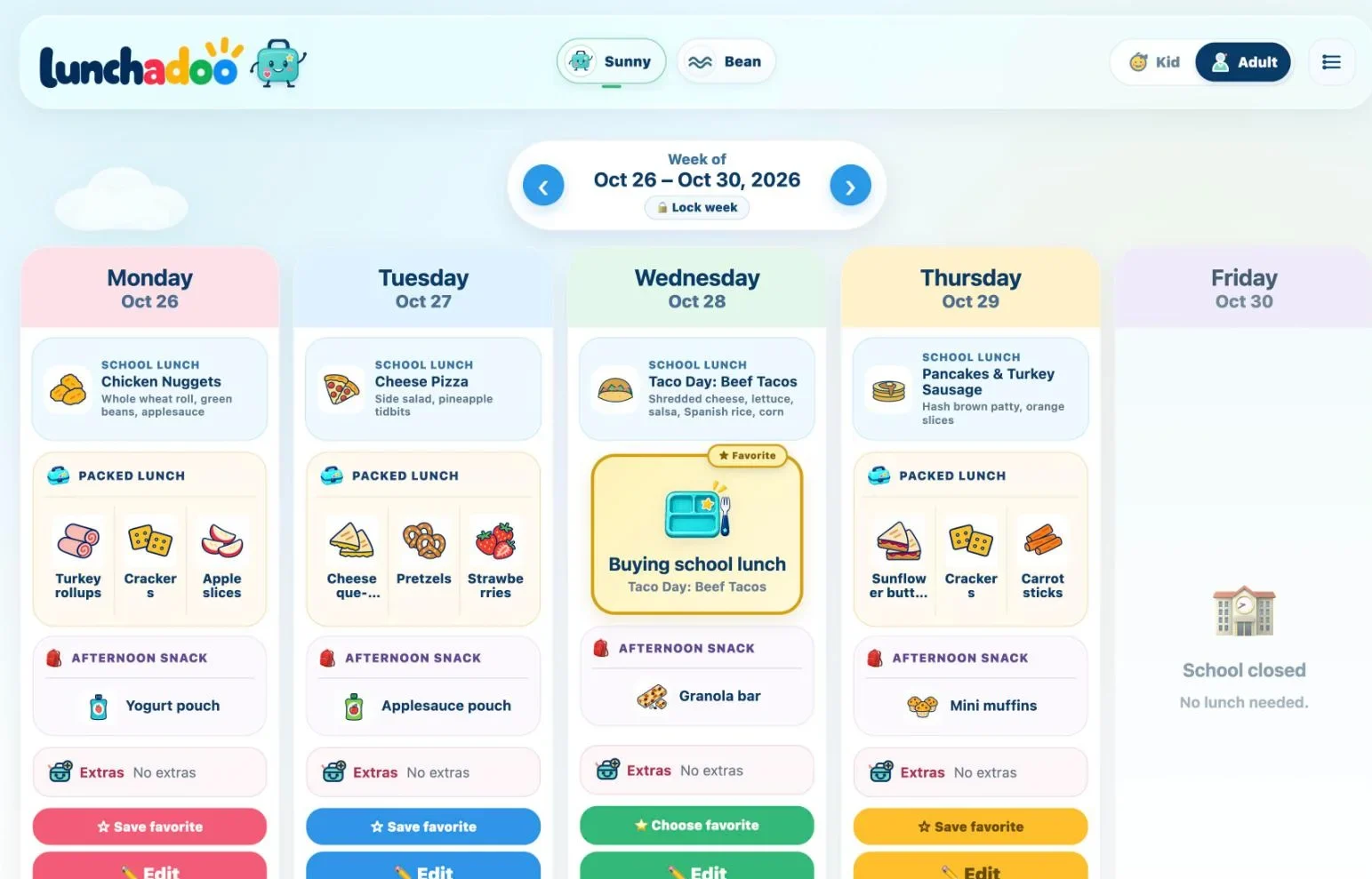
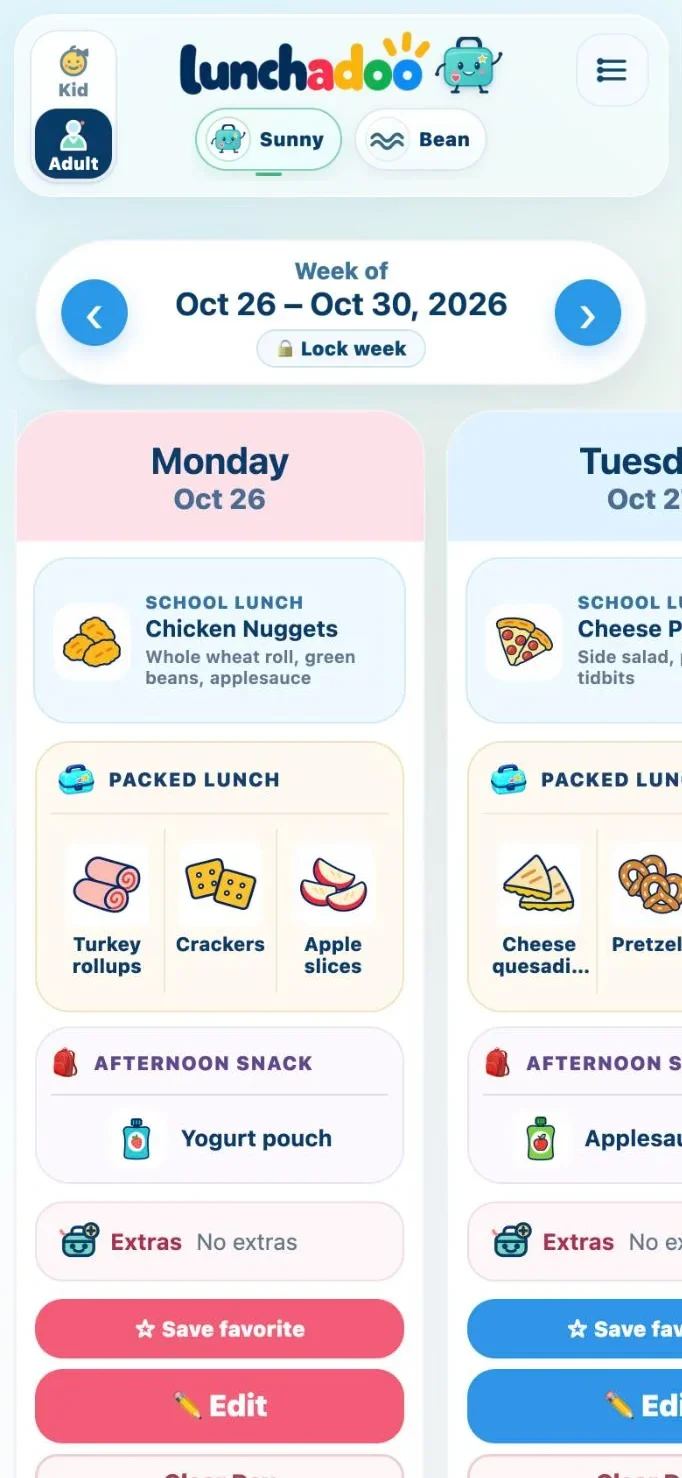
Real app screens, fictional family
Pick the one that sounds like your house, and see how Lunchadoo helps.
Lunches are planned before the week starts, so packing takes minutes and nobody has to decide on the spot.
Fill the week from foods your kids like, or let Plan My Week do it.
Each child’s list is ready when you open the app in the morning.
Lunch and snacks are already settled, so mornings stay calm.

Start with one day. A few favorites are enough. You don’t need to plan everything.
Plan a little on Saturday. Shop once. Pack with less guesswork. Learn as you go. A few minutes up front makes every weekday morning easier.

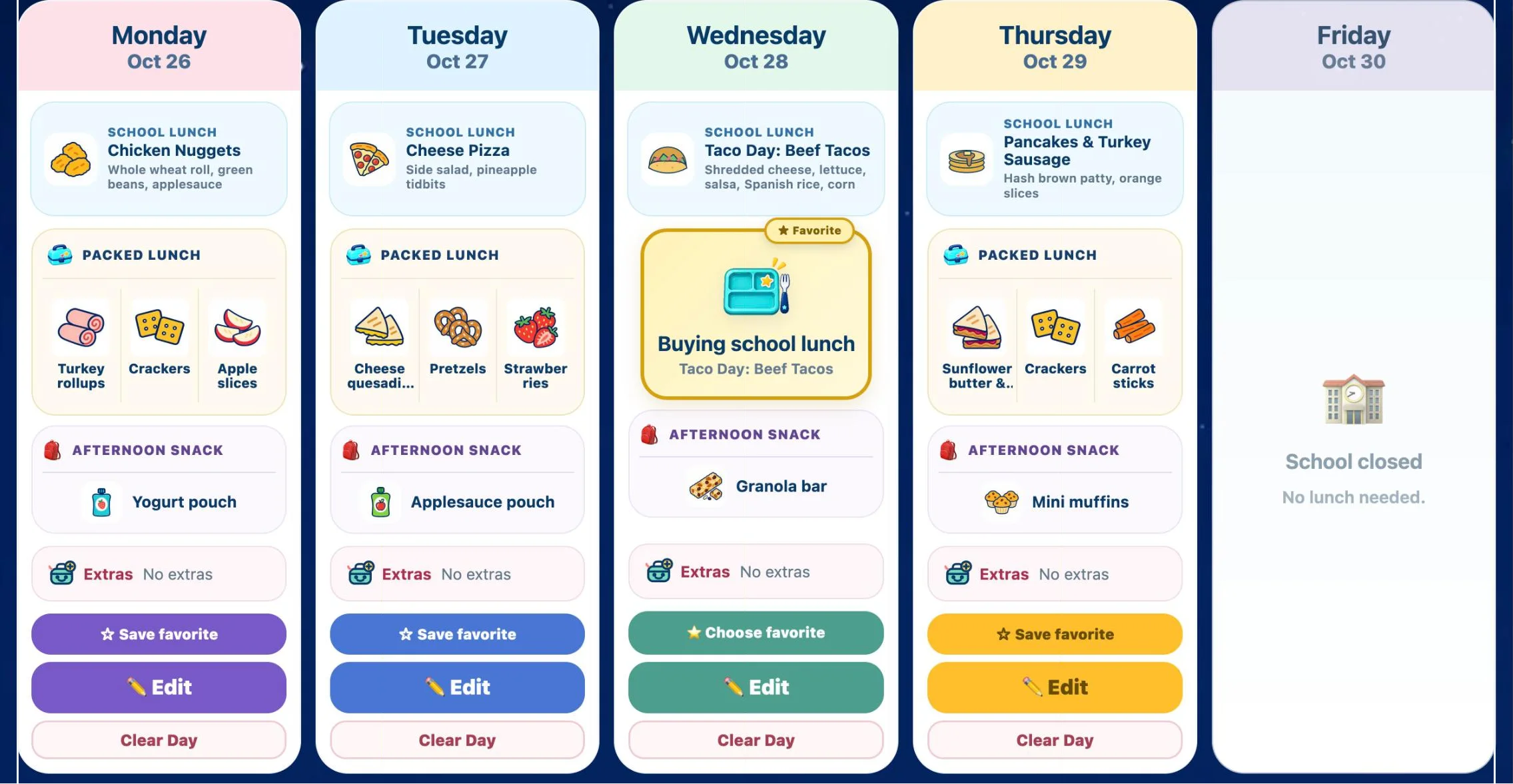
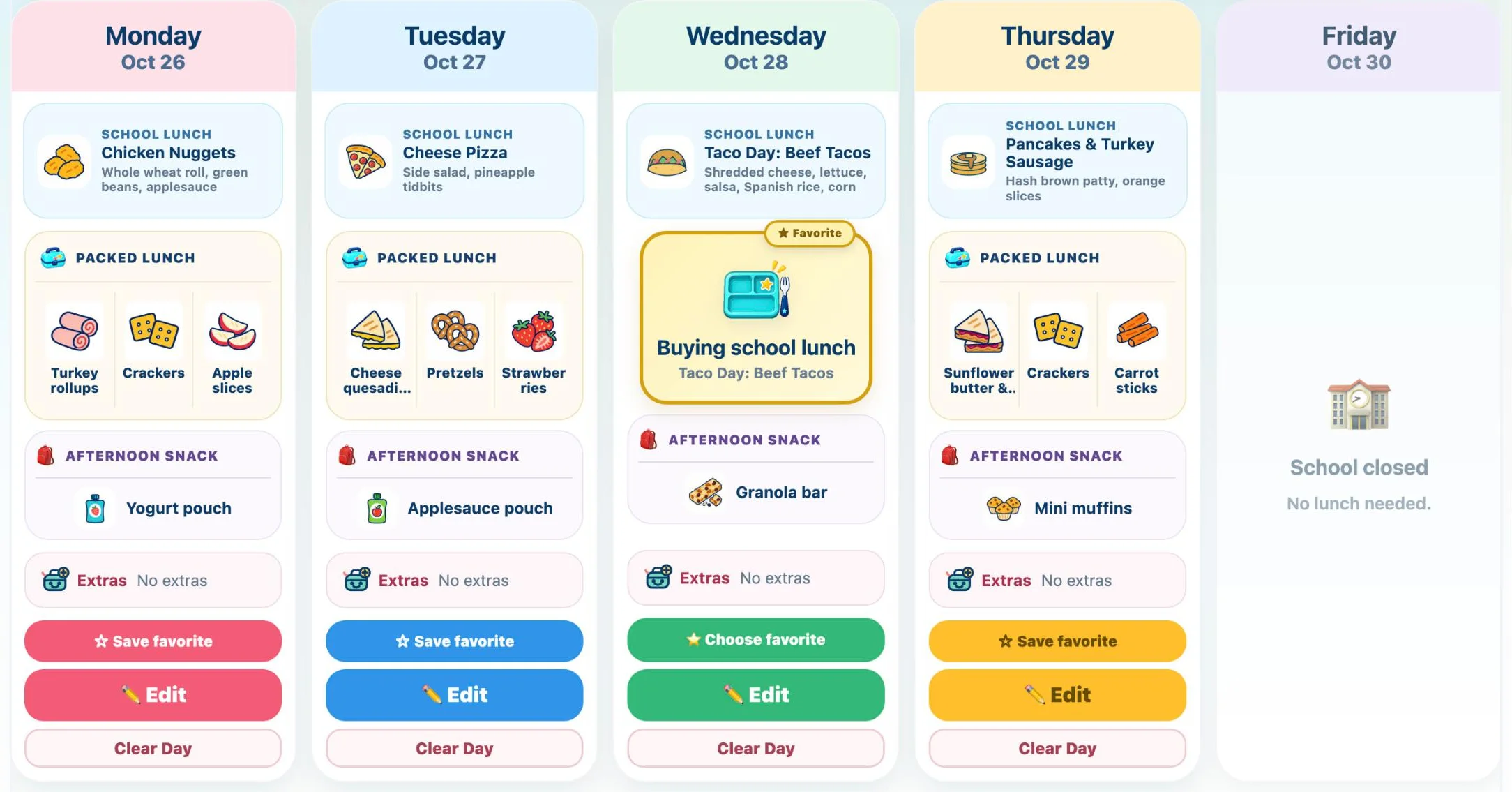
Fill each day from foods your kids like, copy last week, or let Plan My Week fill it for you to tweak.
Every child’s packed lunches and snacks add up into one shopping list for the week, with servings, so one trip covers it.
Today’s lunch shows up as a simple checklist for each child, so whoever is packing knows exactly what goes in. Lunches planned on any device show up here, already synced.

Add a quick photo of what came home, and mark what was eaten: all, most, some, or none.

Your check-ins show which foods keep coming home, so next week’s plan can lean toward the hits.
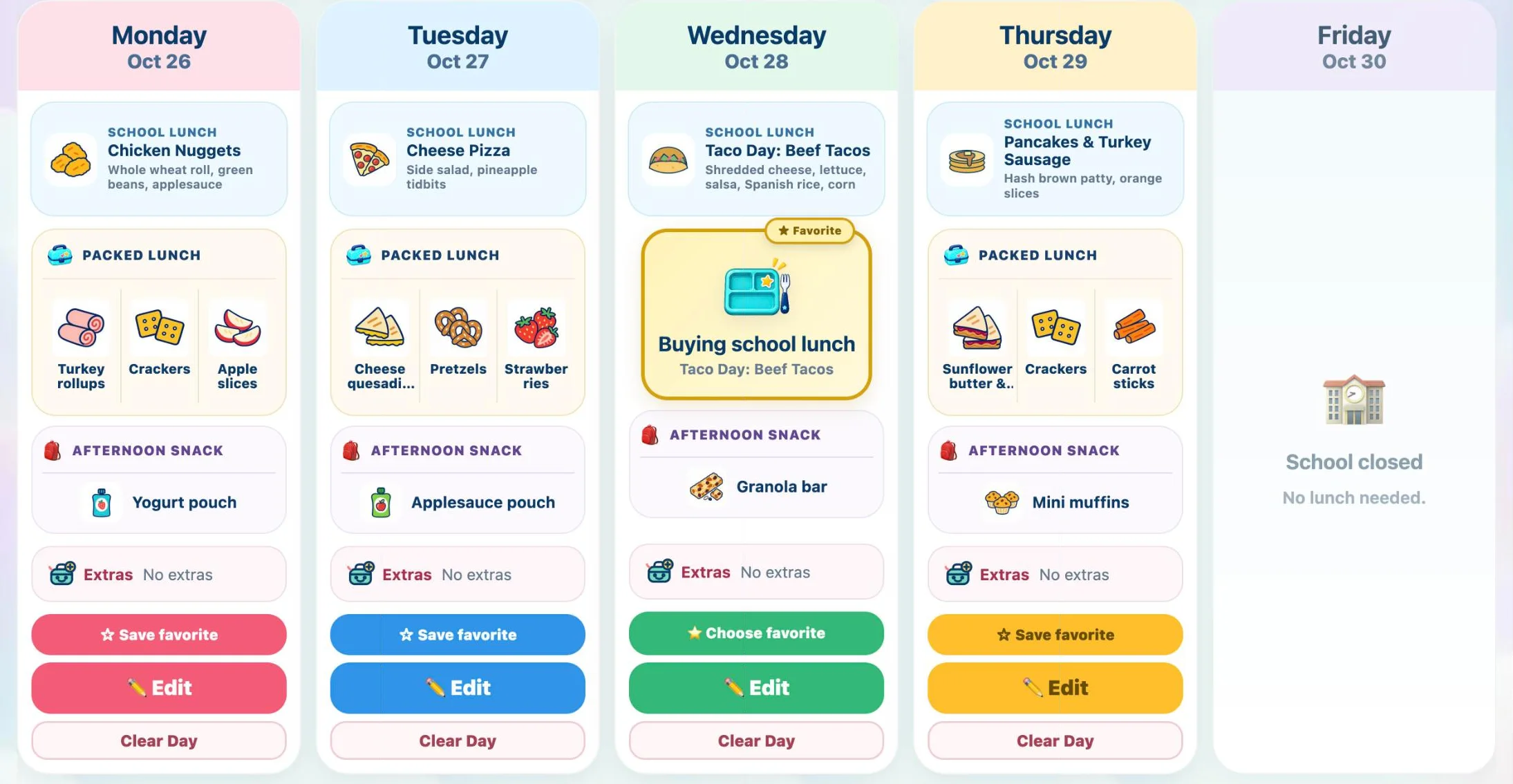
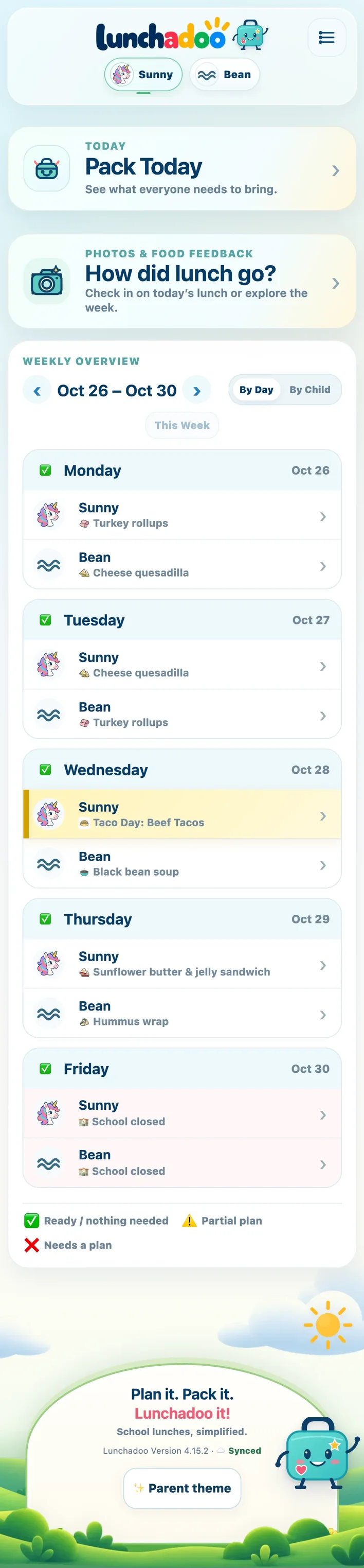
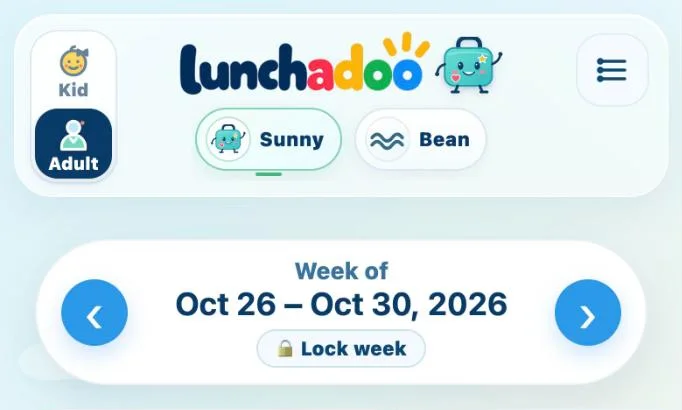
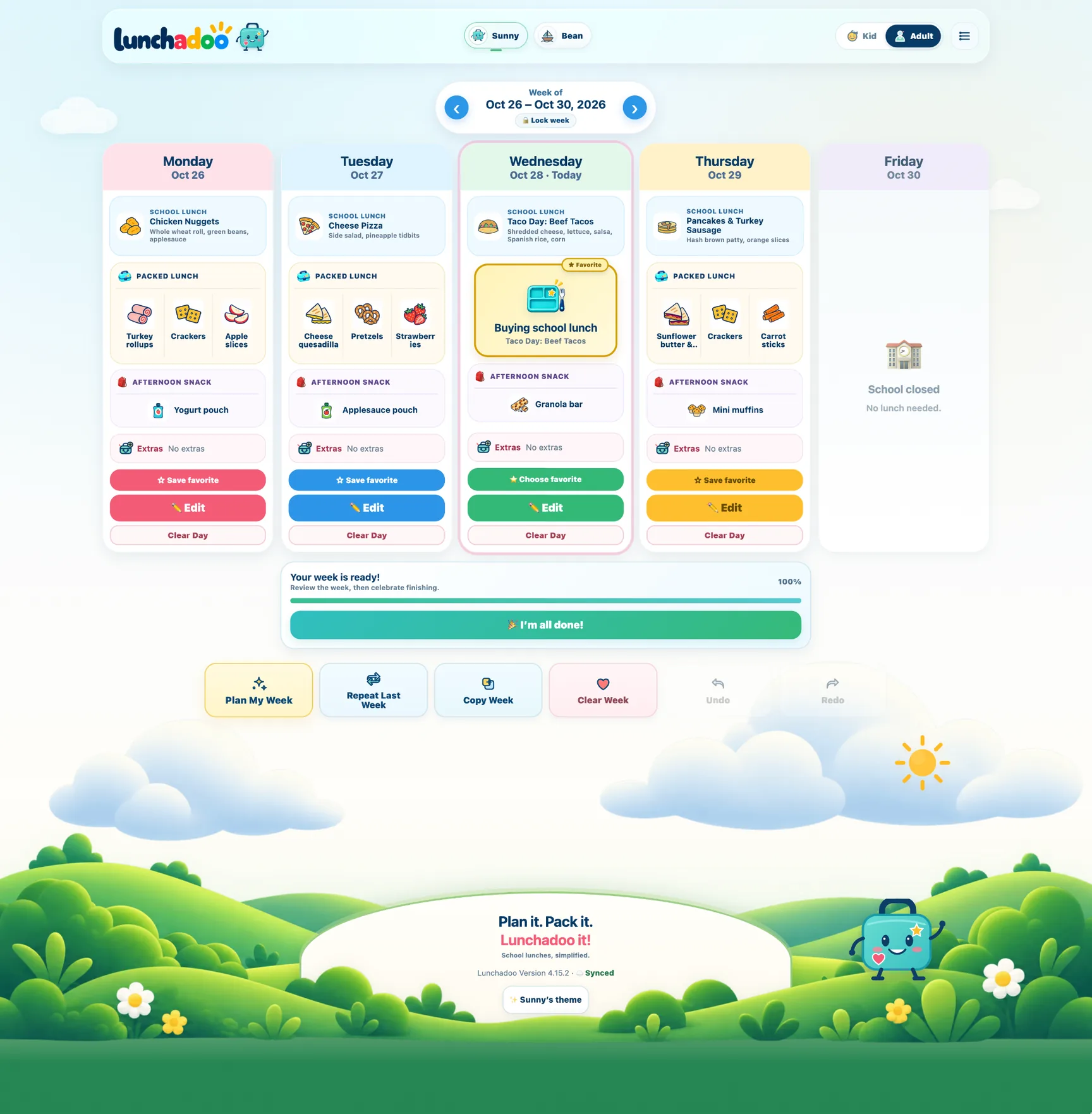
Real screens from the app, shown with a fictional family. Pick a view, then scroll inside the phone to see the whole screen, just like you would in the app.
Plan · phone
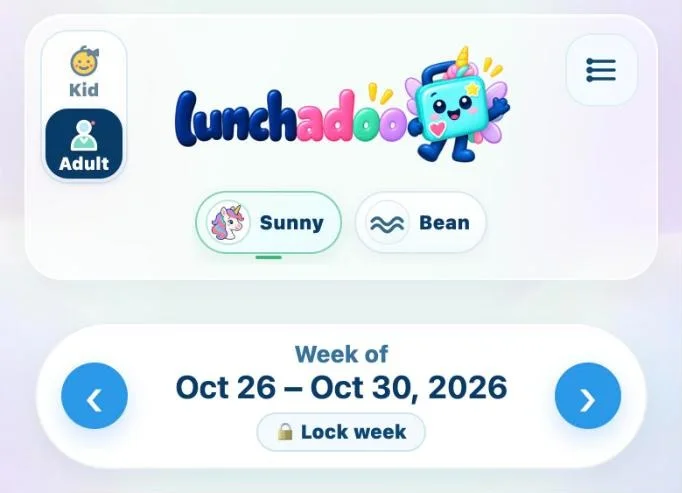
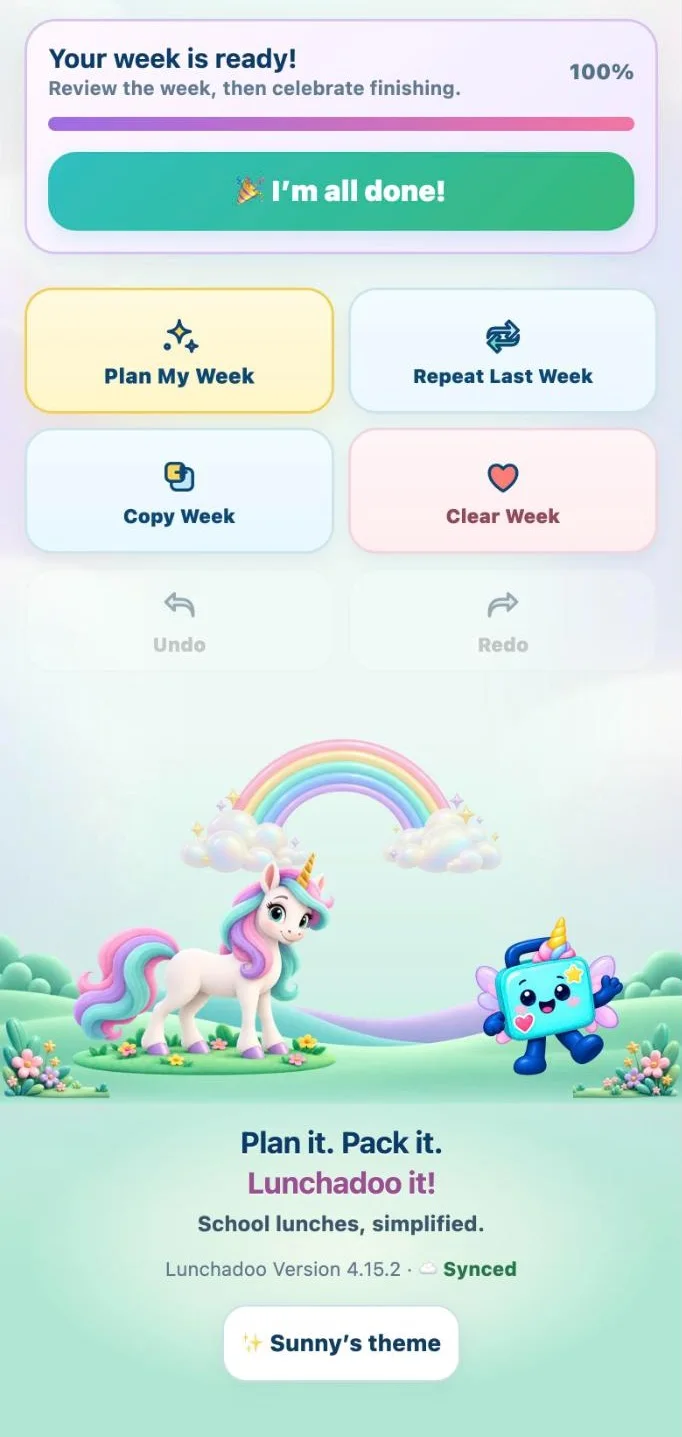
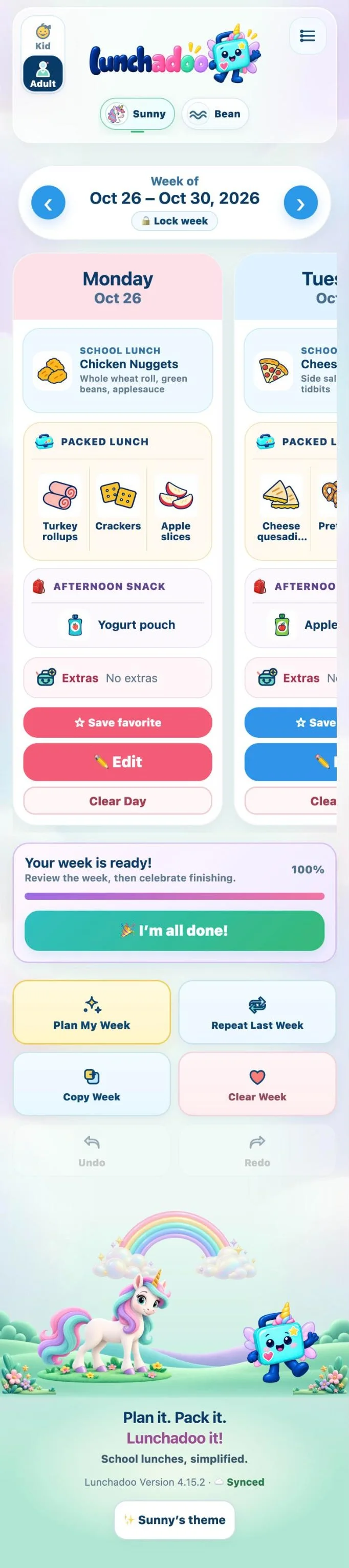
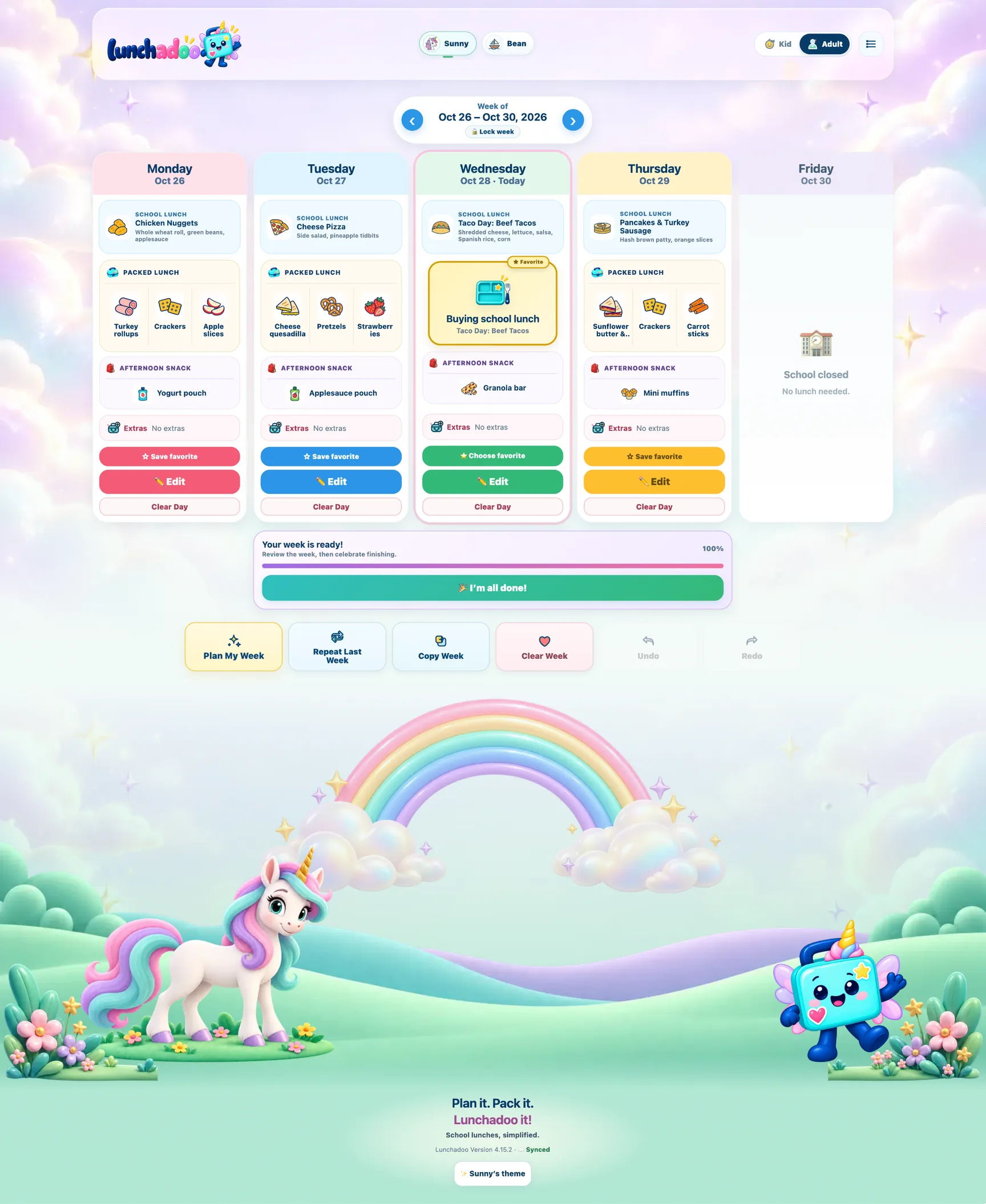 App screen coming soonA fresh capture from the current app goes here.
Shown in Sunny’s Unicorns theme one of more than 45 themes.
Built for the parent packing at 7:15 a.m. with one shoe on, and fun enough that kids want to join in.
Upload the school lunch menu. Lunchadoo reads it, you review it, and each day’s school lunch lands right on your plan.
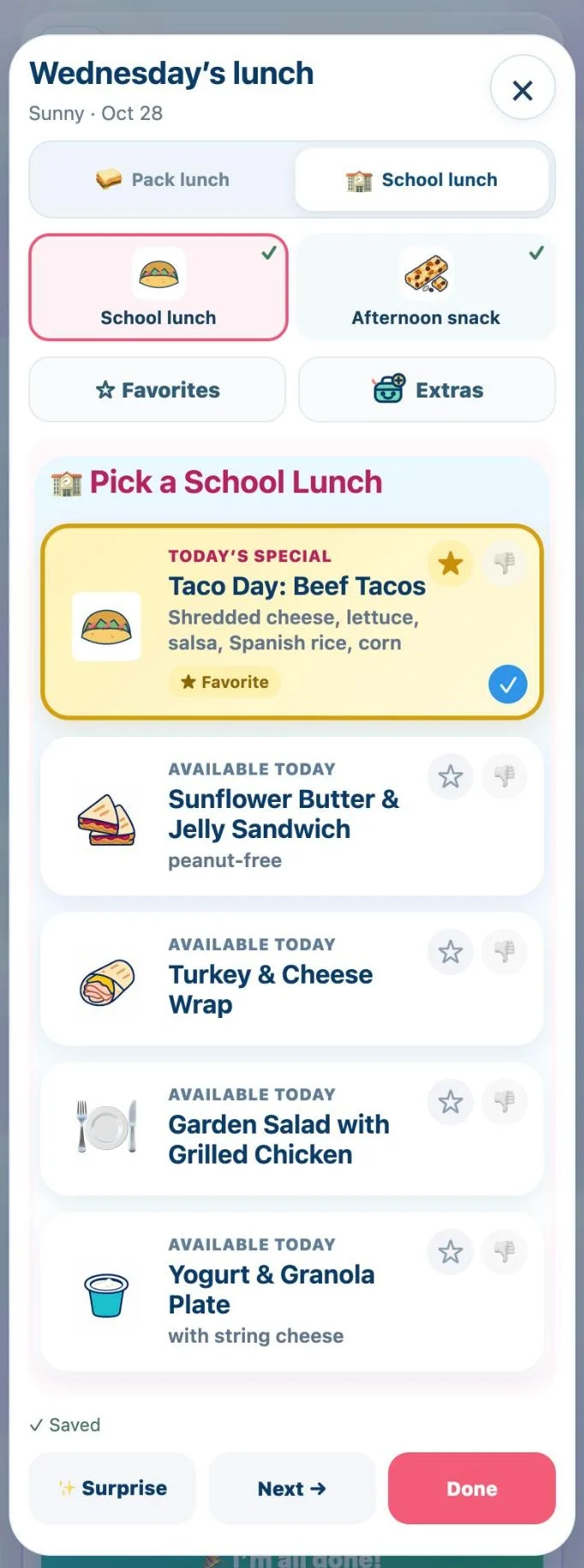
Upload the school calendar too. Holidays, teacher workdays, and closures land on the right days, so nobody packs a lunch for a day off.
Early dismissal shows as a notice. It doesn’t cancel lunch on its own.
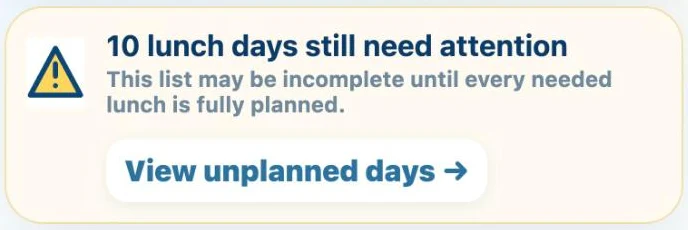
Once the week is planned, Lunchadoo combines what every child needs into a single list, so you shop once instead of working it out aisle by aisle.

Grilled cheese was a favorite at home. It was chosen again for school, and it kept coming back untouched. Check-ins help you notice that, then decide together what to try next.
Example for one child. Based on the photos and check-ins your family adds.
Start from the starter library, add your own foods with your own photos, and give them the names your kids actually use.
 Dinosaur Crunchy Things
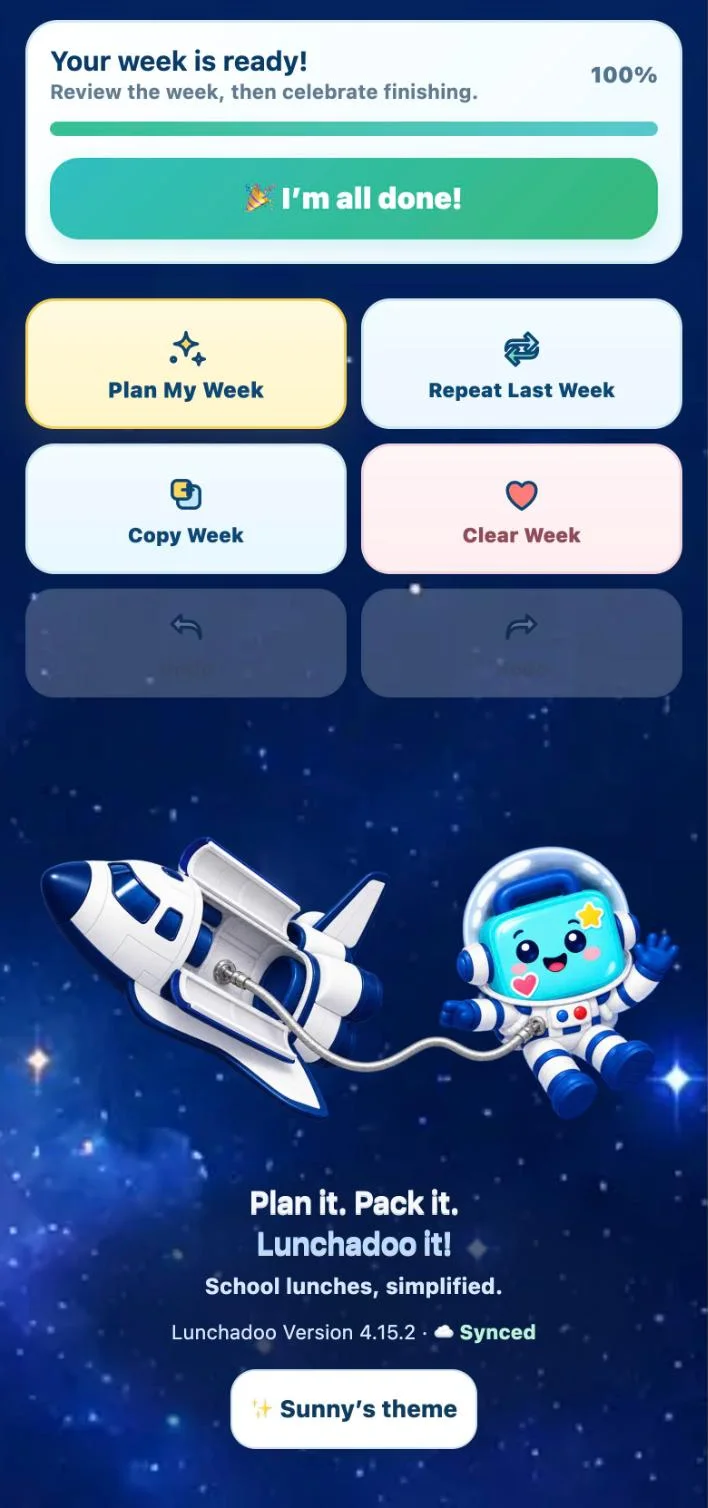
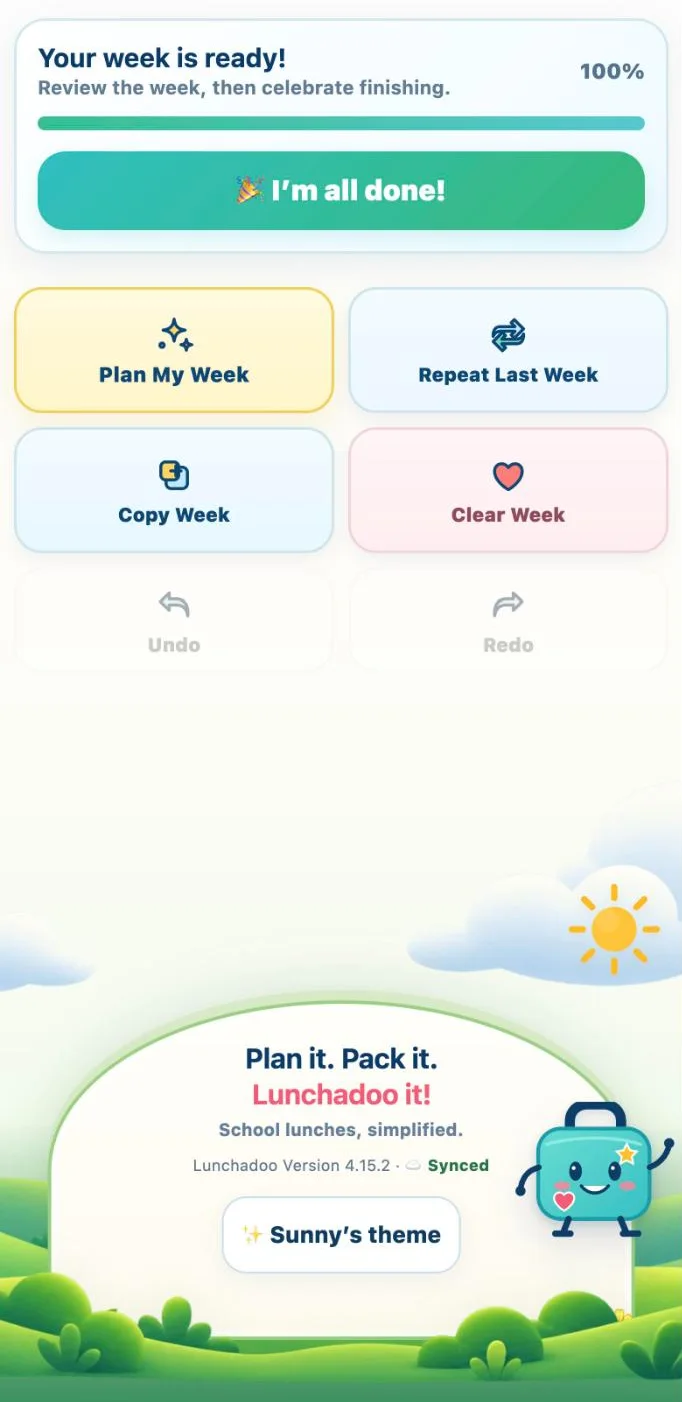
Once lunches are planned and groceries are bought, lock the week to help prevent accidental edits. Your plan stays ready for packing, and you can unlock it in Parent Mode when plans change.
Short on time? Plan My Week fills the week from your family’s foods. Review it, swap anything, and you’re done. Or turn on Weekly Auto-Plan to have it run on its own.
It only uses foods from your family’s library and leaves out anything marked as disliked. Favorites come up most often, then foods marked as liked, and it avoids repeating the same pick back to back. Each child’s variety setting decides how often a new or still-learning food is mixed in, always alongside something familiar:
Invite another parent, a grandparent, or a sitter. You make the plan, and whoever packs tomorrow can follow it. Changes sync to everyone’s device, and caregivers are included at no extra cost.

Lunchadoo is built to show you the right thing at the right time, so a quick check takes seconds and the rest stays tucked away.
On school days, Lunchadoo can open straight to the packing checklist in the morning and to check-ins after school. You choose the days and the time windows.
On Saturday and Sunday, Home shows a “Prepare for the week ahead” card. It takes you to plan next week, or to the shopping list once the week is planned.
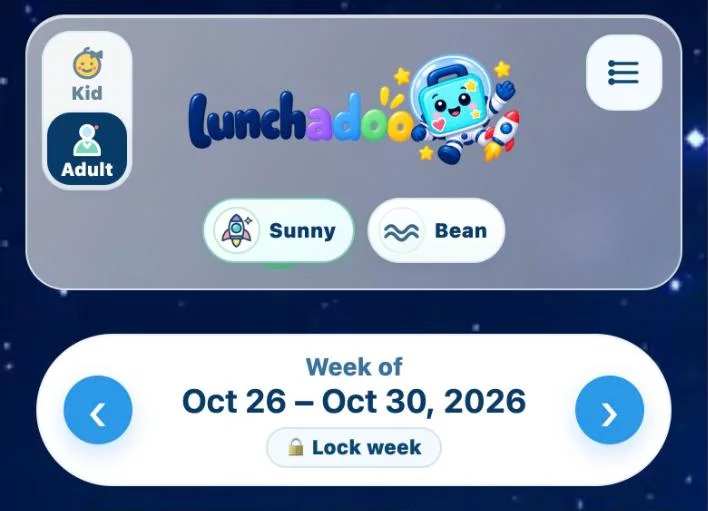
Today comes first, with one tap to Pack Today or check in on how lunch went. Below it, every child’s week by day or by child, with each day marked ready, partly planned, or needing a plan.
Plan My Week fills the week in one tap, and Weekly Auto-Plan can do it on the day and time you pick. You just review it.
Undo and Redo sit right under the planner, and you can lock a finished week so it stays put.
Setup lives in Settings behind your Parent PIN, so everyday screens stay focused on lunch.

“Built so my kindergartener could help plan her own lunch.”
Lunch should feel easy and a little fun, for adults and kids. A small plan gives everyone fewer things to remember.
Lunchadoo’s founder
Lunchadoo has two clearly separate sides. You decide what’s on the menu, and kids help plan in a space made for them, with you alongside.
A dedicated Kid Mode, built for privacy and safety. Kids get a simple picture-based planner with nothing to type, and grown-up settings stay behind your Parent PIN.
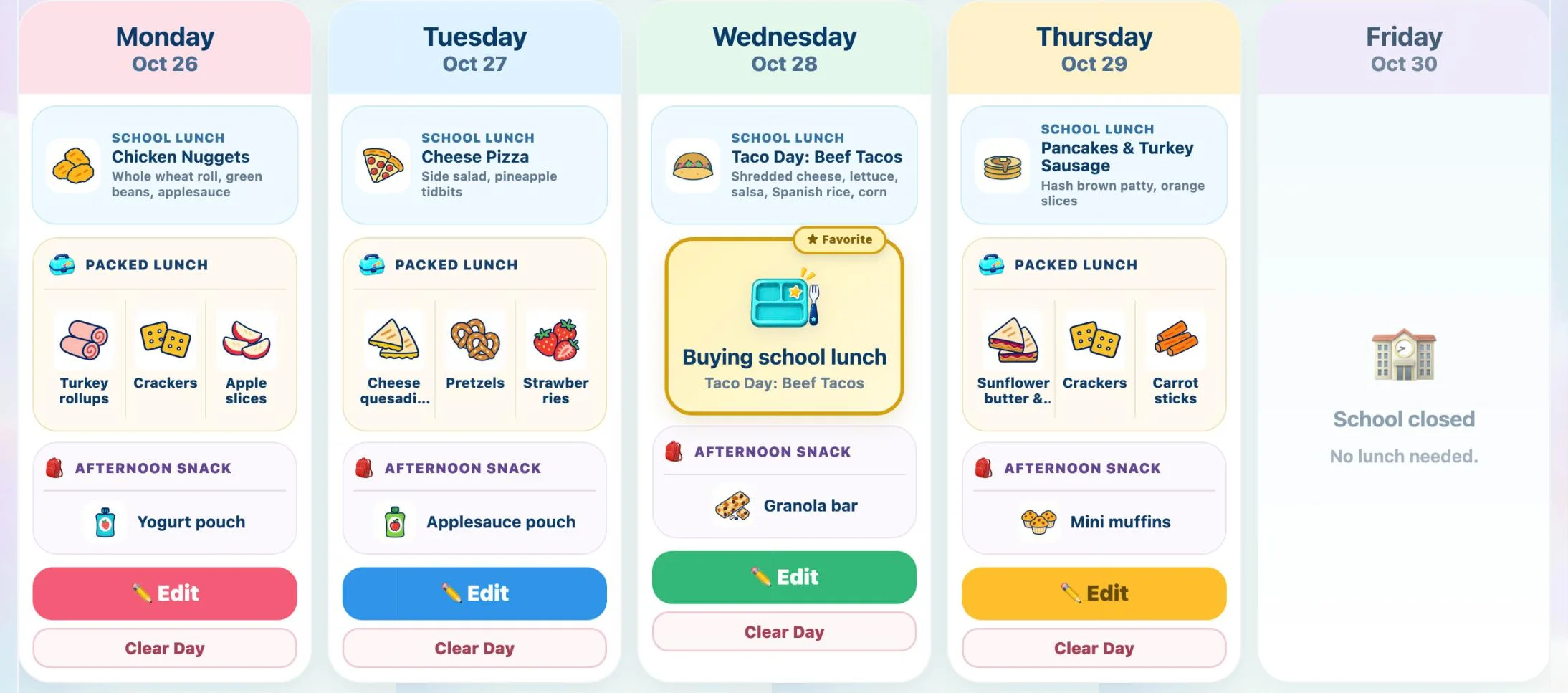
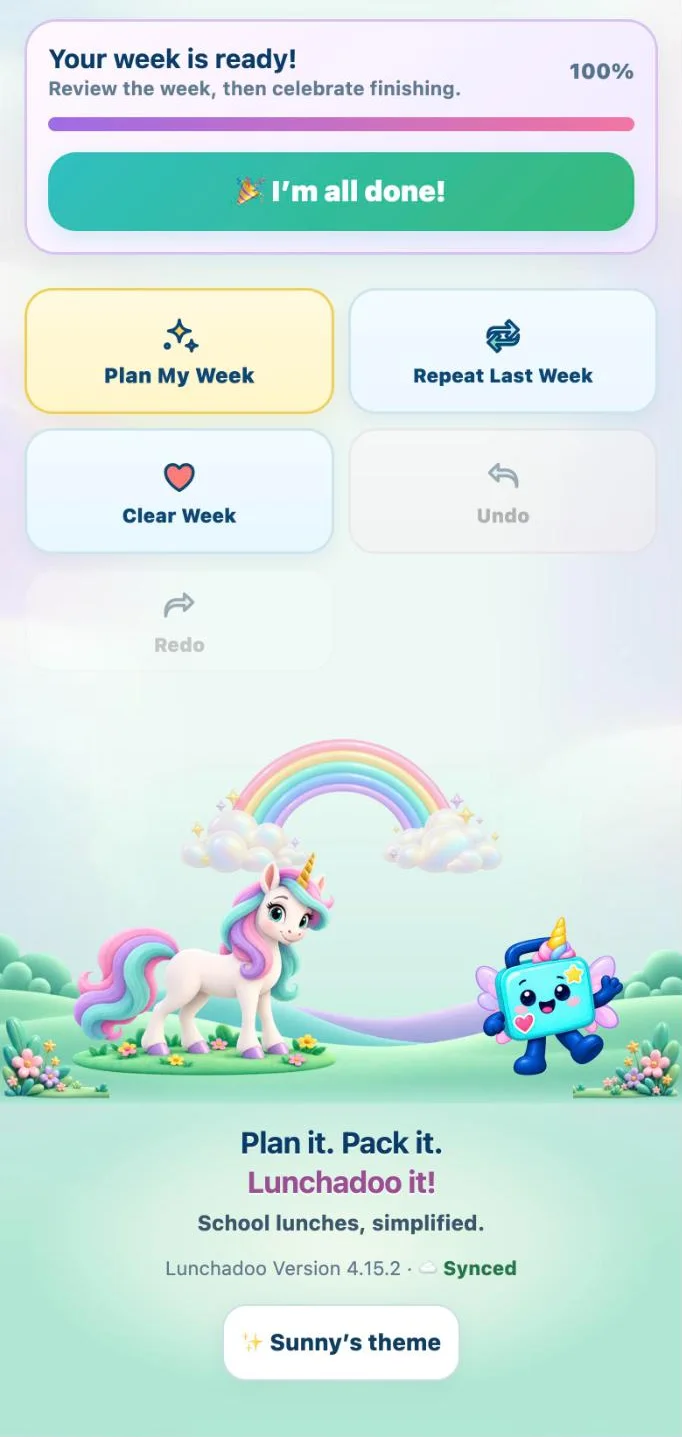
Kid Mode is a separate space made just for kids. It runs on your device with you nearby, each child needs your approval by email before it turns on, and kids don’t get their own accounts.
More than 45 themes bring a playful touch to planning, and these are just a few. Each child picks their own, and you can choose a separate theme for yourself, from adventures to something calm for the grown-ups.
 Theme screen coming soonA fresh capture from the current app goes here.

Lunchadoo asks for what it needs to plan lunch, and very little about who’s eating it. Everything a child can see or pick is something a parent chose or set up.
Read the full details in our Privacy Policy.
Lunchadoo works in any web browser today, on computers, tablets, and phones. Apps for iPhone and Android are on the way, and they’ll use the same household account.
Changes sync across devices. Plan on the laptop, and the week is already on your phone. When anyone in your household plans or changes a lunch, everyone else sees the update on their own device.
Your 30 days start when your invite arrives. After that, keep the calm mornings for about the price of one coffee a month. One plan covers your whole household, including every child and caregiver at no extra cost.
First 30 days freeNo credit card needed to startThat’s about $3.33 a month, billed once a year.
Nothing is charged unless you choose to subscribe after your free month. Plans renew automatically until you cancel, and you can cancel any time in Settings. Terms
We’re opening Lunchadoo to a small group of families first, so we can listen closely and make it great before everyone joins. Request an invite and we’ll email you when there’s a spot. Your 30 free days start then.
Email us at privacy@lunchadoo.com. When a spot opens, we’ll send your invite to that address. We only use your email for your invite and to reply to you, and you can ask us to remove it anytime.
No. Once you’re invited, create your account and use every feature free for 30 days. You’ll only enter payment details if you decide to subscribe.
Nothing is charged automatically. You can still open your plans, export them, or delete them. To keep planning, choose $4.99 a month or $39.99 a year.
If you subscribe, your plan renews automatically at $4.99 a month or $39.99 a year until you cancel, and payment is handled securely by Stripe. The household owner can cancel any time in Settings › Plan & billing, in one step. You keep Lunchadoo until the end of the period you’ve paid for, and if you cancel during your free trial you’re never charged. Payments aren’t refunded for unused time. Full details are in our Terms, or email privacy@lunchadoo.com and we’ll help.
Lunchadoo runs in your phone’s web browser today. iPhone and Android apps are in the works, and they’ll use the same household account you use on the web.
Yes. Invite other adults to your household at no extra cost. They’ll see the same saved weekly plan and packing checklist.
Upload your school’s menu or calendar and Lunchadoo pulls out the days for you to review. Mark which days your child buys lunch, and no-school days drop off the packing list.
Kids pick from the foods you’ve made available, in their own themed planner, on your device with you nearby. Anything that changes settings or the household needs your Parent PIN.
As little as we can. A parent creates each child profile, and a first name or nickname, plus the foods you choose to offer, is all Lunchadoo needs. Kid Mode requires your approval for each child. Details are in our Privacy Policy.
We’re letting families in a few at a time. Email us for an invite and we’ll write back when there’s a spot. Your 30 free days start then.
Write to privacy@lunchadoo.com. We’ll only use your email to send your invite and answer you. Please don’t include your child’s name or details. See our Privacy Policy.
Already invited? Sign in
No credit card needed